ProjectsPC builds

FROM MY WORKBENCH BUILD 01

MCPRUE.
My daily driver.

My latest PC build and main workstation. A closer look at the parts, the finished build, and what I learned putting it together.

01 / THE PARTS

What’s inside.

A silver Apollo S V5, built around a Core Ultra 9 and RTX 5080. Here’s the hardware behind my everyday workstation.

My main workstation is separate from the server that hosts this site. Meet the homelab

COMPONENTIN THIS BUILD
Case
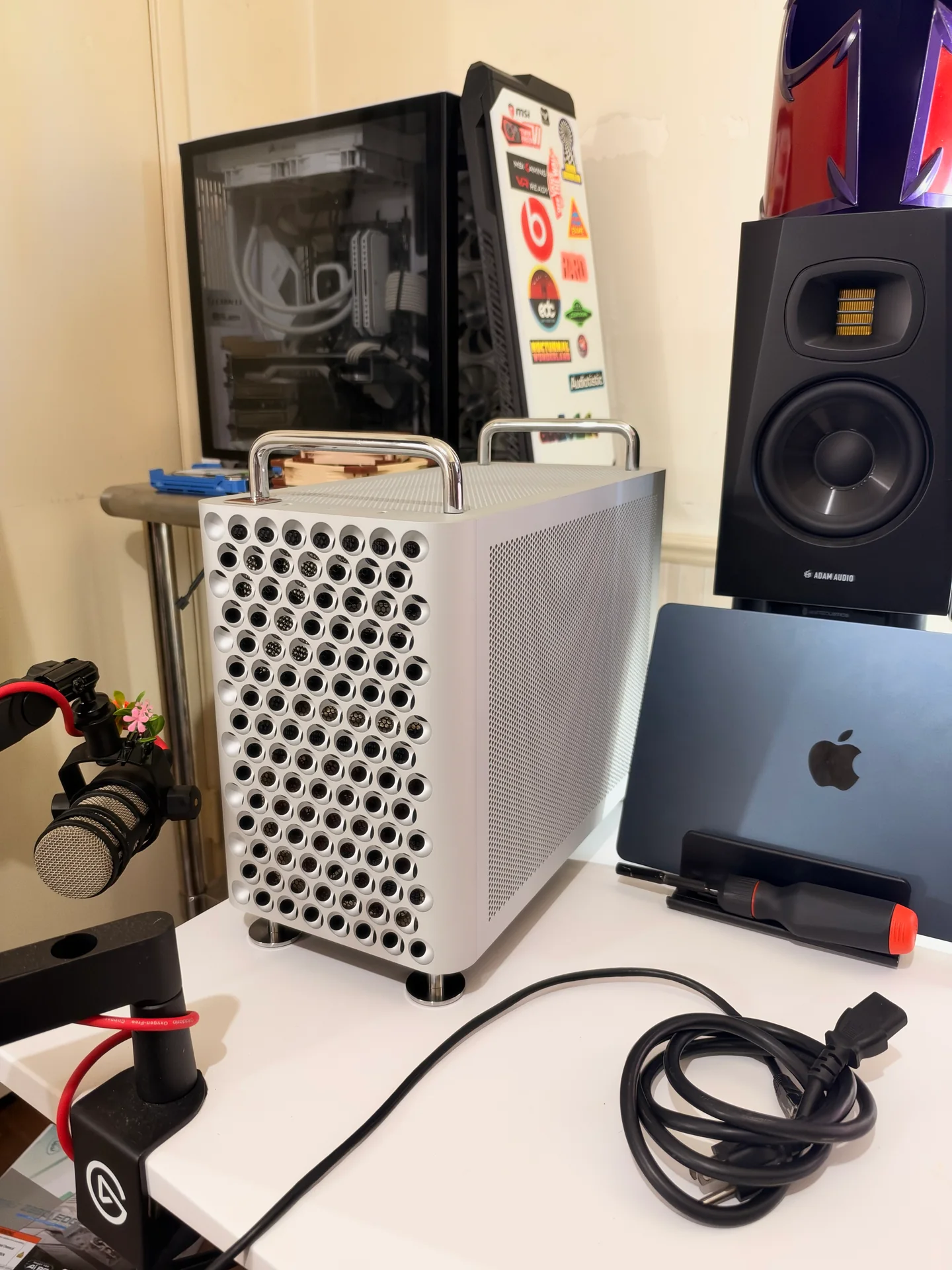
MCPRUE Apollo S V5 Silver · handle kit
Processor
Intel Core Ultra 9 285K 24 cores
Graphics
NVIDIA GeForce RTX 5080
Memory
64 GB DDR5 2 × 32 GB Micron · 5600 MT/s configured
Motherboard
MSI MPG Z890I EDGE TI WIFI
Storage
Viper VP4300L · 4 TB Samsung 990 EVO · 2 TB
CPU cooling
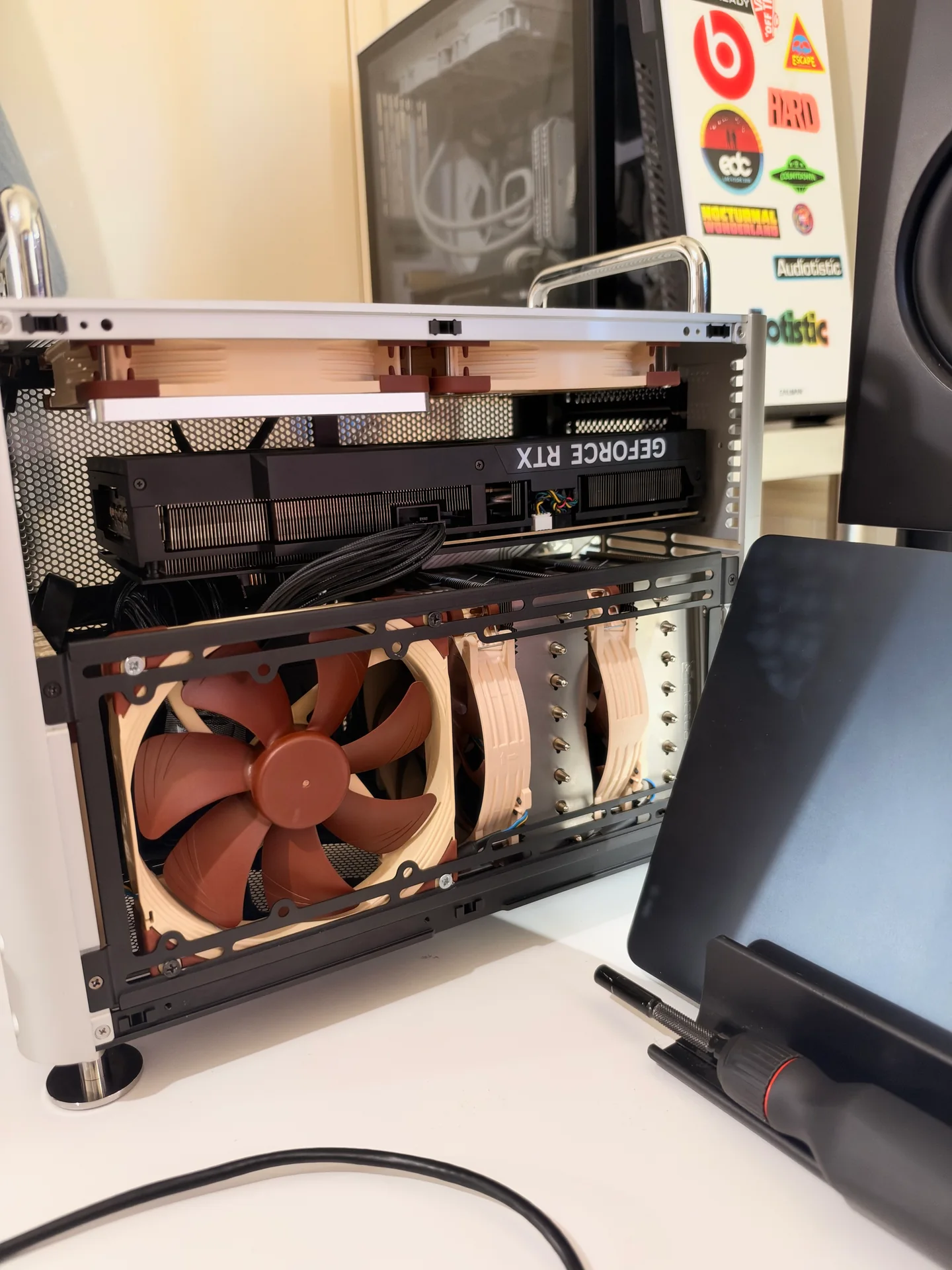
Noctua NH-D15 G2
Power supply
Corsair SF1000 2024 model · 1000 W
Operating system
Windows 11 Pro

02 / THE PHOTOS

A closer look.
Outside and in.

The silver Apollo S V5 at my desk, then a look under the side panel. Open either photo to see it at full size.

03 / THE NOTEBOOK

More than
a parts list.

The build is finished. The story is just getting started.

My first compact build.

This was my first compact PC build with an SFX power supply. The cramped space made assembly harder, especially getting the components to fit together.

For my main workstation, I wanted a quieter setup, a sleek look, and less lighting. Those were the goals behind this build.

NEXT IN THE NOTEBOOK

  1. More from the assembly.

    A closer look at the tight fit and what I’d approach differently next time.

  2. After daily use.

    How the setup feels to use, plus any changes I make along the way.

04 / WINDOWS SETUP

A fresh install.
A little cleanup.

I wanted a Tiny11-style cleanup while keeping the Windows features I use. I made my Windows 11 installation USB with Rufus, then used Win11-Lean-Safe.ps1 after installation to trim the apps and settings I didn’t want.

My original cleanup preset is available below, alongside its instructions and a manual alternative. Review what it changes before choosing it for your PC.

  1. Start with a current Microsoft ISO.

    For a fresh install today, download Microsoft’s current public Windows 11 ISO in the language and architecture you need. Use “Verify your download” on that page to compare its published SHA-256 with your file.

  2. Make the USB with Rufus.

    Download Rufus from its official site, select your ISO, and double-check the target USB. For a modern UEFI PC, use GPT / UEFI. Review the setup choices individually, including account and encryption options. Rufus erases the selected USB. Its official FAQ explains boot compatibility.

  3. Install, update, restart.

    Back up your files and recovery keys before a clean install; it can erase the destination drive. Boot the USB, confirm the correct installation disk, and choose the edition covered by your Windows license. After setup, install Windows updates and appropriate hardware drivers, then restart.

  4. Remove the apps you don’t use.

    You can review and download my cleanup preset below. For a manual starting point, open Settings → Apps → Installed apps and uninstall unused apps one at a time. Keep anything you rely on; some built-in apps aren’t removable there.

  5. Check the everyday essentials.

    Restart after cleanup, check Windows Update again, and open Windows Security to confirm protection is active. Check Microsoft Store updates, then try your everyday apps, games, audio, network, and peripherals before calling the setup finished.

FROM MY SETUP NOTES

Win11-Lean-Safe.ps1

My original cleanup preset, published unchanged. Intended for a fresh personal Windows 11 installation.

Back up first. This removes listed apps and their local data for all users, including Sticky Notes, OneNote, To Do, and Phone Link. Read the instructions and choose what to keep before running it.

Defaults: hibernation and Fast Startup off, CompactOS compression on, OneDrive kept.

12,957 bytes · Published October 17, 2026

SHA-256396cb4cd9ee70f693ec808a9396a1df3ad9949e08f362cd91af96b033182663f

How to review and run the script
  1. Finish Windows updates and restart. Open 64-bit Windows PowerShell 5.1 using Run as administrator. Change to the actual folder where you saved the script; replace this example path:

    Set-Location -LiteralPath 'C:\path\to\download-folder'
  2. Compare the file’s SHA-256 with the value above before editing. Stop if it differs. Then open the script in Notepad to review it:

    Get-FileHash -LiteralPath '.\Win11-Lean-Safe.ps1' -Algorithm SHA256
    notepad.exe '.\Win11-Lean-Safe.ps1'
  3. Edit $DisableHibernate, $EnableCompactOS, and the $remove app list as needed; keep $RemoveOneDrive = $false. Save your changes. An edited copy will have a different hash.

    No dry run or command-line options: edit the settings in the file. Do not add -WhatIf; it will not prevent this script from making changes.

  4. When you’re ready, run your reviewed copy:

    powershell.exe -NoProfile -ExecutionPolicy Bypass -File '.\Win11-Lean-Safe.ps1'

    Bypass applies only to this PowerShell process; Group Policy still applies. Read the README for logs, skipped actions, and recovery limits, then restart and check the essentials above.

What my cleanup preset was designed to do

My preset removes the listed apps for all users and deprovisions them for new accounts. The list includes Copilot, Clipchamp, News and Weather, new Outlook, consumer Teams, Sticky Notes, OneNote, To Do, Phone Link, and other inbox apps. The README includes the full list.

It also reduces ads, suggestions, widgets, and optional diagnostics through machine and current-user settings. It removes Math Recognizer, Steps Recorder, XPS Viewer, and WordPad capabilities when installed, plus the Recall feature payload when present.

The preset is designed to keep Microsoft Defender, Windows Update, Windows Recovery, Microsoft Store, winget, Xbox dependencies, media codecs, and the pagefile. OneDrive removal is off by default.

It runs DISM component cleanup without /ResetBase. CompactOS compression and disabling hibernation are on by default; edit their booleans before running to skip them. Disabling hibernation also removes Fast Startup and hybrid sleep’s protection against power loss. Review these choices for the way you use your PC.

Built by me. Documented as I go.

Back to the workbench